 FuelMetric Pro
User guide · Chapter 4 of 8
Receipts and transfers
Record oil received into a tank or sent out, with the quantity from both dips.
Receipts and transfers are part of Pro. Open Reports and choose New under Receipts & transfers.
Receipt or transfer
- Receipt (in): oil comes into the tank and the stock rises. Quantity = After − Before.
- Transfer (out): oil goes out of the tank and the stock falls. Quantity = Before − After.
Enter the details
- Choose the receiving (or issuing) tank and enter the supplier (or receiver).
- Carrier (barge, vessel, lorry), reference or challan and Form No. are for the report; the carrier and Form No. are optional.
- Before: the dip starts from the tank's last reading. Check it, or enter the dip taken before the operation.
- After: for a receipt, the dip after the oil has settled; for a transfer, the dip after the transfer is complete.
- Enter the quantity on the supplier documents (or stated by the receiver) to see the difference on the report.
- Choose Save receipt (or Save transfer).
If the After stock does not rise for a receipt, or fall for a transfer, the app says so and offers to change the type.
Receipt report
Open a saved receipt to see every value Before and After: dip, temperature, densities, VCF, volumes, WCF and the quantity in MT. Save PDF and Save Excel create the report (on Android, Share).
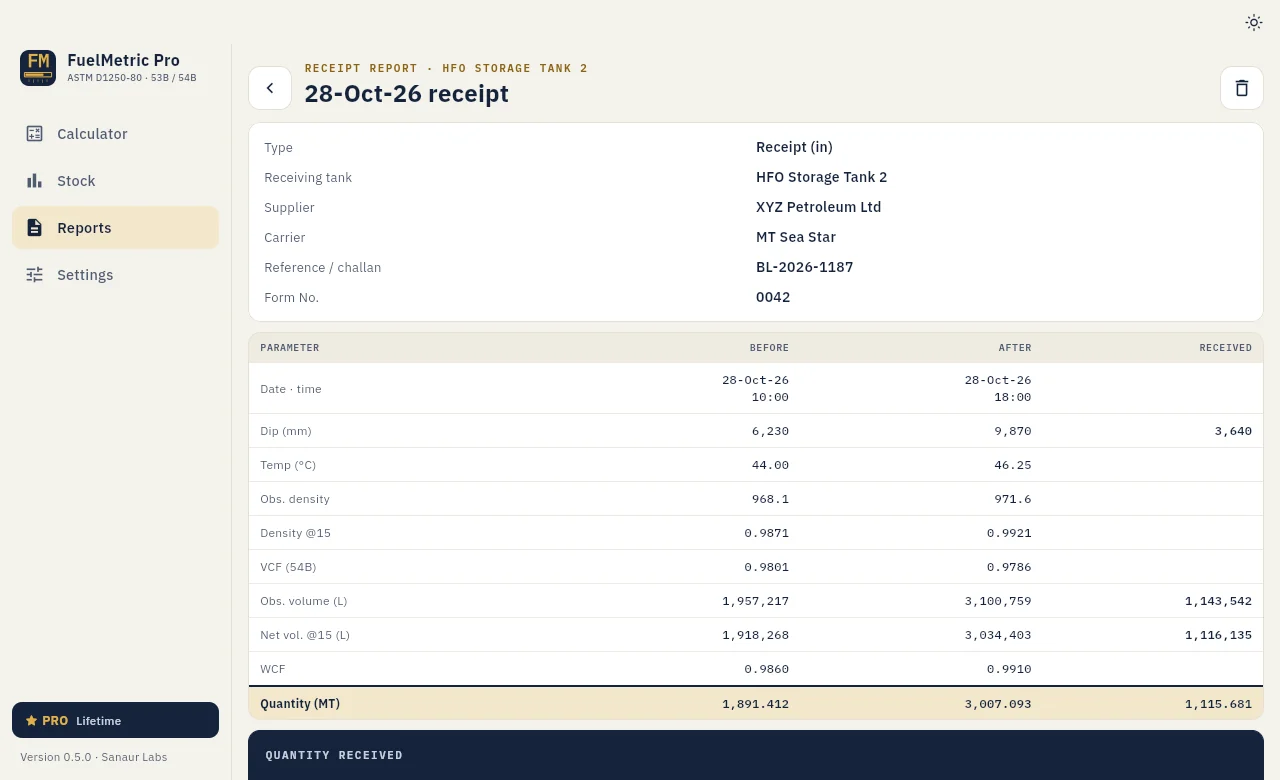
The report title ("Receipt report" by default) can be changed in Settings › Reports.