 FuelMetric Pro
User guide · Chapter 2 of 8
Tanks and calibration charts
Add a tank, import its calibration chart and check it.
Each tank uses its own calibration chart. The free app keeps one tank; Pro has no limit.
Add a tank
Open Settings › Tanks & charts › Add, or continue from the first start.
- Tank name, for example HFO Tank 01.
- Capacity in MT.
- Dead stock in MT: the oil below the suction level that cannot be pumped. Usable stock = Total stock − Dead stock.
Calibration chart
The chart is a CSV file with the dip in millimetres and the volume in litres. A fraction table (1 to 9 mm) is optional; it is used from the threshold dip upwards where the chart step is 10 mm. In Excel, save the sheet with File › Save As › CSV.
Tank name,HFO Tank 01
Fraction threshold dip (mm),100
Dip (mm),Volume (L)
0,0
10,1890
20,3790
30,5690
Fraction (mm),Volume (L)
1,189
2,378
...
9,1701
Choose Choose CSV file, or copy the rows and choose Paste. Template shows this layout and copies it for you.
Check the chart
The app reads the chart and shows the number of rows, the step, the dip and volume range and whether a fraction table is present. Use the spot check: enter a dip from your printed chart and compare the volume. Then tick I have checked this chart against the calibration certificate and choose Confirm & save tank.
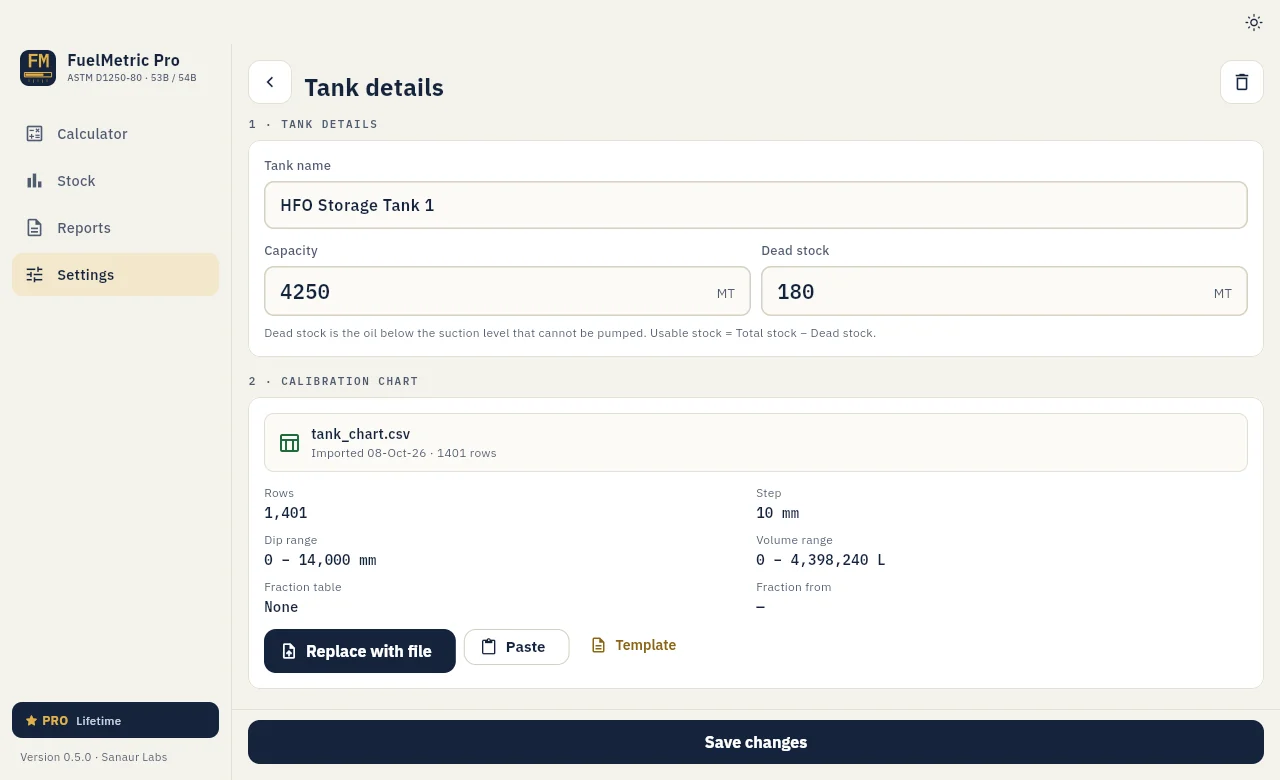
Change or delete a tank
Open the tank from Settings › Tanks & charts. Replace with file loads a new chart. The bin icon deletes the tank, its chart and its readings.
Volumes come from the chart rows, the fraction table where present, otherwise straight-line interpolation between rows. A dip outside the chart is refused.